

Equipment Check-In/Check-Out Software:
How It Works and How to Choose (2026)
Short answerEquipment check-in/check-out software replaces paper sign-out sheets with barcode or QR scans that record who has each item, when it left, when it is due back, and its condition on return. It adds overdue alerts, reservations, and a searchable custody history, so shared tools, laptops, and gear stop disappearing.
With systems such as BarCloud, employees receiving equipment can also have their own web and mobile experience where they can browse available assets, submit requests, see what is currently checked out to them, identify overdue items, and request maintenance or repairs.
Key takeaways
- Every checkout system does the same core job: link a labeled item to a person or location, with a due date and a condition record.
- A paper or spreadsheet log works for a small team at one site; once you have multiple issuers, multiple locations, or audit requirements, software pays for itself in time saved searching.
- The features that separate tools are reservations, overdue alerts, bundles (kits), signature capture, self-service for non-users, and deployment options such as on-premise.
- Choose by scenario: IT onboarding, school device loans, fire/EMS gear, clinical equipment, and jobsite tools each stress different features.
- Pilot with one equipment category and one location before rolling out, and label everything before go-live.
How does equipment check-in/check-out software work?
It works like a library checkout for your organization’s equipment. Each item gets a unique ID printed as a barcode or QR label; the software stores that ID with the item’s description, serial number, home location, and status.
- Label the item. Attach a durable barcode or QR asset tag. The tag’s number is the item’s permanent record key.
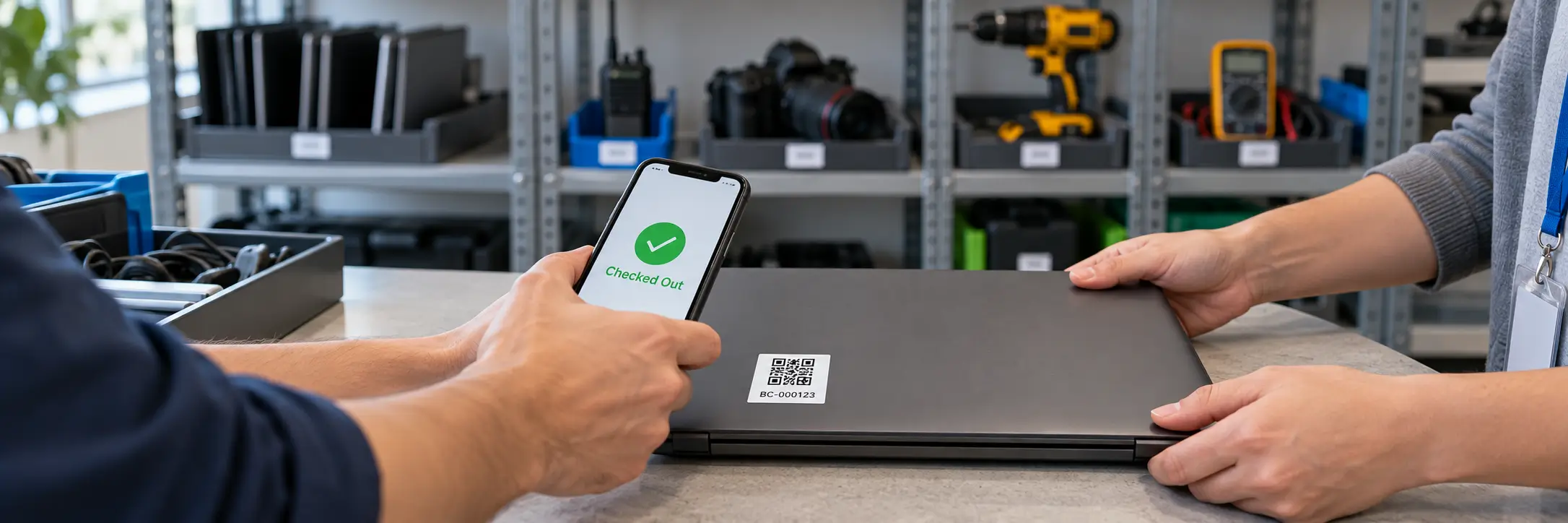
- Check it out. The issuer (or the borrower, if self-service is allowed) scans the tag, selects the person or location receiving it, and sets a due date. The record now shows the item as checked out.
- Track while it’s out. The system knows who has it and when it is due. Overdue items trigger email or text reminders.
- Check it in. On return, the item is scanned again, a return condition is recorded (for example, good or damaged), and the item goes back to available, or is blocked for repair.
- Report. Every handoff is time-stamped, so you can answer “who had this last?” in seconds and produce custody reports for audits.
One distinction worth knowing: checking out is not the same as moving. A move is a long-term or indefinite relocation with no due date, such as sending surplus desks to storage. A checkout is a short-term loan with a deadline, such as a laptop, radio, camera, or meter. Good systems treat the two differently so due-date alerts only fire on real loans.
Paper log, spreadsheet, or software: which do you need?
Paper and spreadsheets are fine at small scale. The breaking point is usually a second location, a second person issuing equipment, or an auditor asking for history.
| Method | Works well when | Where it breaks |
|---|---|---|
| Paper sign-out sheet | One site, one issuer, a few dozen items, low-value gear | No reminders, illegible entries, no search, easily lost; can't prove custody later |
| Spreadsheet (Excel / Google Sheets) | One team, one issuer, items rarely change hands | Manual typing errors, version conflicts, no scanning, no alerts, no audit trail of who edited what |
| Checkout software with barcode/QR scanning | Multiple issuers or sites, frequent loans, overdue problems, audit or grant reporting | Requires labeling everything up front and a short rollout; subscription or license cost |
Free equipment check-in and check-out log: the columns to use
If you are starting on paper or in a spreadsheet, use these columns. They are also the fields any software you adopt later should capture, which makes migration easy.
- Asset ID (the number on the tag)
- Item description (make, model)
- Serial number
- Borrower name
- Department, project, or location
- Checkout date and time
- Due date
- Condition at checkout (new, good, fair, damaged)
- Accessories included (charger, case, batteries)
- Borrower signature or initials
- Actual return date and time
- Condition at return
- Received by (initials)
- Notes (damage, missing parts, repair needed)
What features should equipment checkout software have?
All tools scan and log. The differences show up in how they handle scheduling, accountability, and exceptions. Use this checklist when you evaluate vendors.
| Feature | Why it matters | Question to ask the vendor |
|---|---|---|
| Mobile scanning (phone camera) | No hardware needed to start; staff scan anywhere | Does the app work offline and sync later? |
| Due dates and overdue alerts | The single biggest driver of fewer lost items | Can alerts go by both email and text, and to whom? |
| Reservations and calendar | Prevents double-booking of shared gear | Can people outside the admin team reserve items? |
| Bundles / kits | One scan checks out a camera plus lenses plus batteries | Does checking out the main item check out every linked item? |
| Check-in condition | Damaged gear gets flagged instead of reissued | Can a damaged status automatically block the next checkout? |
| Signature capture | Proof of custody for high-value or regulated items | Is the signature stored on the transaction record? |
| Employee self-service / borrower portal | Employees can use web or mobile access to browse available equipment, request items, see what is assigned to them, identify overdue equipment, and submit service or maintenance requests | Can borrowers manage the equipment they need and the equipment assigned to them through web and mobile access without requiring full administrative access? |
| Approval workflows | Organizations can require equipment requests to be reviewed before an item is issued | Can requests require approval before checkout? |
| Multi-site support | Transfers between buildings, campuses, stations | Can each site see only its own equipment? |
| Maintenance tracking | Returned items route to inspection or calibration | Can maintenance schedules block checkout when overdue? |
| Deployment options | Some government and defense sites require on-premise or air-gapped systems | Is on-premise available, and at what price model? |
| Integrations and API | Sync people from your directory; push data to accounting | Is there Active Directory, an API, or Zapier? |
Which checkout setup fits your type of organization?
IT departments: onboarding and offboarding laptops
IT teams need to assign devices to new hires fast and get everything back when someone leaves. Look for directory integration (so employee records aren’t typed by hand), per-person custody reports, and check-in conditions. Octo Consulting Group, a federal IT contractor, used barcode check-in/check-out and Active Directory integration in BarCloud to manage hundreds of assets valued at over $200,000 during a hiring surge. It moved off spreadsheets and cut the time staff spent hunting for equipment (case study).
Schools and universities: device and equipment loans
Schools loan laptops, AV gear, and sports or lab equipment with clear due dates. Priorities are simple interfaces for staff with limited technical background, per-student or per-classroom custody, and reports for equipment bought with grant funds. Hamblen County Department of Education in Tennessee replaced multiple spreadsheets with barcode tracking and configurable check-out to locate federally funded equipment quickly (case study).
Fire and EMS: station gear, PPE, and supplies
Fire and EMS logistics teams mix durable assets (radios, meters, washers) with expiration-dated PPE and consumables. They need issue-to-person and issue-to-apparatus tracking, maintenance and expiration alerts, and physical counts across stations. Arlington County Fire Department’s Logistics Branch, supporting 10 fire stations, used barcode tracking with unique IDs for stations, employees, and apparatus and printed its own barcodes in-house (case study).
Healthcare: clinical and biomedical equipment
Hospitals need to find mobile equipment quickly, keep preventive-maintenance records, and show compliance. Prioritize maintenance scheduling, fast search, and a detailed history per device. See how Johnson Regional Medical Center uses search and maintenance logs across more than 700 tracked assets.
Construction and field service: tools on jobsites
Tool cribs need checkout to a person and a jobsite, rugged labels, and offline mobile scanning. Bundling is useful for kits. See BarCloud’s tools tracking page for that use case.
How do popular equipment checkout tools compare?
There is no single best tool; the right choice depends on your equipment, your team, and your security requirements. The table below summarizes each vendor’s public positioning.
Some platforms focus primarily on equipment checkout or inventory tracking, while others combine checkout with broader asset management, maintenance, employee self-service, and multiple deployment options.
| Tool | Publicly positioned as best for | Notable checkout-related capabilities (per vendor) | Deployment |
|---|---|---|---|
| BarCloud | Organizations tracking both inventory and assets in one system, including government, military, healthcare, schools, and fire/EMS | Check-Out/Check-In, reservations and calendar, approval workflows, bundled assets, signature capture, check-in conditions, maintenance tracking, email/SMS notifications, and My Work Assets—an employee-facing web and mobile experience for browsing available equipment, submitting requests, seeing assigned and overdue assets, and requesting maintenance | Cloud (shared or dedicated), self-hosted, or on-premise including air-gapped |
| Sortly | Small businesses and teams wanting simple, visual, mobile-friendly inventory and equipment tracking | QR/barcode scanning with a phone, photo-based item records, check-in/check-out | Cloud |
| Cheqroom | Organizations managing shared equipment, with a strong focus on media/production and higher education | Reservations and scheduling, checkouts with custody tracking, maintenance | Cloud |
| EZO EAM (formerly EZOfficeInventory) | Organizations managing equipment and physical assets across operations, maintenance, and multiple locations | Checkout workflows, maintenance, reporting, barcode and RFID support | Cloud |
| Shelf | Teams wanting an open-source equipment and asset management platform | QR code labels, browser-based scanning, check-in/check-out | Cloud-hosted or self-hosted; open source |
Descriptions reflect each vendor's own public positioning and features as of October 5, 2026. Features and plans may change over time.
How does BarCloud handle check-in and check-out?
BarCloud’s Check-Out/Check-In module is part of its asset tracking system. The capabilities most relevant to checkout programs are:
- Reservations with a calendar view showing daily and monthly reservation history (Reservation).
- “Reservation Only” security level, which lets non-users reserve and check out specific assets set by an administrator.
- Configurable alerts by email, text message, or both, when an item is returned or becomes available.
- Bundled assets: scanning a “main asset” checks out all linked supporting items.
- Check-in conditions (for example new, good, poor, used, damaged) and a checkout blacklist with conditions that can automatically block damaged items from being checked out.
- Three check-in location options: the original check-out location, a home location, or a user-selected location for handing an item to another user.
- Signature capture and maintenance tracking in the asset module.
- My Work Assets add-on, which gives employees web and mobile access to browse, request, and reserve items and manage equipment assigned to them.
- Mobile apps for iOS and Android that use the phone camera as a scanner (mobile apps).
- Deployment choice: cloud, self-hosted, or on-premise, including air-gapped installs. This matters for military and government sites that can’t use multi-tenant cloud software.
My Work Assets: the employee side of equipment checkout
My Work Assets gives employees their own web and mobile experience for interacting with the equipment they need and the equipment already assigned to them.
Employees can:
- Browse available equipment
- Add equipment to a cart
- Submit an equipment request
- Go through an approval process when one is required
- Receive approved equipment through the checkout process
- See what equipment is currently checked out to them
- See which assigned assets are overdue
- Submit maintenance or repair requests for equipment in their possession
This creates two sides to the checkout process: administrators can control equipment, approvals, transactions, and records, while employees have a dedicated experience for finding, requesting, viewing, and managing the equipment they use.
Reservation Only vs. My Work Assets
These capabilities serve different purposes.
Reservation Only provides controlled access that allows designated equipment to be reserved or checked out without giving someone broader administrative permissions.
My Work Assets provides a broader employee-facing web and mobile experience around the equipment itself—from browsing and requesting assets to viewing assigned equipment and submitting maintenance requests.
How do you roll out a checkout system without chaos?
- Pick one pilot category and one location, for example loaner laptops at headquarters or radios at one station.
- Clean your list. Export whatever spreadsheet exists and de-duplicate it; confirm serial numbers physically.
- Decide your ID scheme and label everything before go-live (see our asset tagging guide).
- Set rules: default loan periods, who can issue, who can self-reserve, whether requests require approval, and which items require a signature.
- Configure alerts for overdue returns and for damaged check-ins.
- Configure the employee experience, their access, available equipment, request workflow, and approval process before rollout.
- Train issuers first, then borrowers. A one-page “scan, choose person, set due date” card is usually enough. Employees should also understand how to browse equipment, submit requests, see their assigned items, and report equipment that needs maintenance.
- Run a physical count after 30 days and compare it to the system to catch process gaps.
- Expand to the next category or site once the pilot’s overdue rate is stable.
Frequently asked questions
What is equipment check-in/check-out software?
It is software that records who has each piece of equipment, when they took it, when it is due back, and what condition it came back in. Each item carries a barcode or QR label, and staff scan it with a phone or scanner to check it out or in, which replaces paper sign-out sheets and spreadsheets.
What columns should an equipment check-in and check-out log have?
At minimum: asset ID, item description, serial number, borrower name, department or location, checkout date and time, due date, condition at checkout, actual return date, condition at return, and signatures or initials for both handoffs. Add a notes column for damage or missing accessories.
When should I replace a paper sign-out sheet with software?
Move to software when you track items across more than one location, when more than one person issues equipment, when you need overdue reminders, or when you have to prove custody for an audit or grant. Paper logs cannot send reminders and are hard to search once they grow past a few pages.
What is the difference between moving an asset and checking it out?
A move is a long-term or indefinite relocation, such as sending a desk to storage, with no due date. A checkout is a short-term loan with a clear return deadline, such as a laptop, radio, or camera, so the system can track due dates and flag overdue items.
Can employees manage equipment without being full system users?
Yes. BarCloud's My Work Assets gives employees a web and mobile experience centered around the equipment they need and the assets assigned to them.
Employees can browse available equipment, add items to a cart, submit requests, and go through an approval process when required. They can also see what equipment is currently checked out to them, identify overdue assets, and submit maintenance or repair requests for equipment in their possession.
BarCloud can also use controlled access such as Reservation Only when an organization wants users to interact with designated equipment without giving them broader administrative access.
Do I need special scanners for equipment checkout?
Not to start. Most modern checkout systems, including BarCloud's iOS and Android apps, can use a phone camera to scan barcodes. Dedicated scanners or rugged mobile computers make sense for high-volume counters, gloves-on environments, or sites where personal phones are not allowed.
Sources
- BarCloud, Check-Out/Check-In product page
- BarCloud, Reservation feature
- BarCloud, On-premise hosting
- Case study: Arlington County Fire Department
- Case study: Octo Consulting Group (IT assets)
- Case study: Hamblen County Department of Education
- Case study: Johnson Regional Medical Center
- Competitor positioning: sortly.com, cheqroom.com, ezo.io, shelf.nu (checked October 5, 2026)
Replacing a sign-out sheet?
See how BarCloud's Check-Out/Check-In handles reservations, bundles, and overdue alerts, in the cloud or on-premise.
How can we help?
Quick actions to find your perfect inventory system.
How can we help?
Quick actions to find your perfect inventory system.
Download the 2026 Comparison Guide
Get the full feature-by-feature breakdown — pricing, integrations, and ratings included.
Schedule a Free Consultation
An inventory expert will guide you through your options based on your specific needs.
Get a Demo & Free Trial
See how BarCloud's inventory system fits your business — book a personalized walkthrough.
Request a Quote
Tell us about your business and we'll send pricing tailored to your inventory needs.
Your download is starting…
If it doesn't begin automatically, click below.
Download PDFThanks — we'll be in touch.
A BarCloud specialist will reach out within one business day.